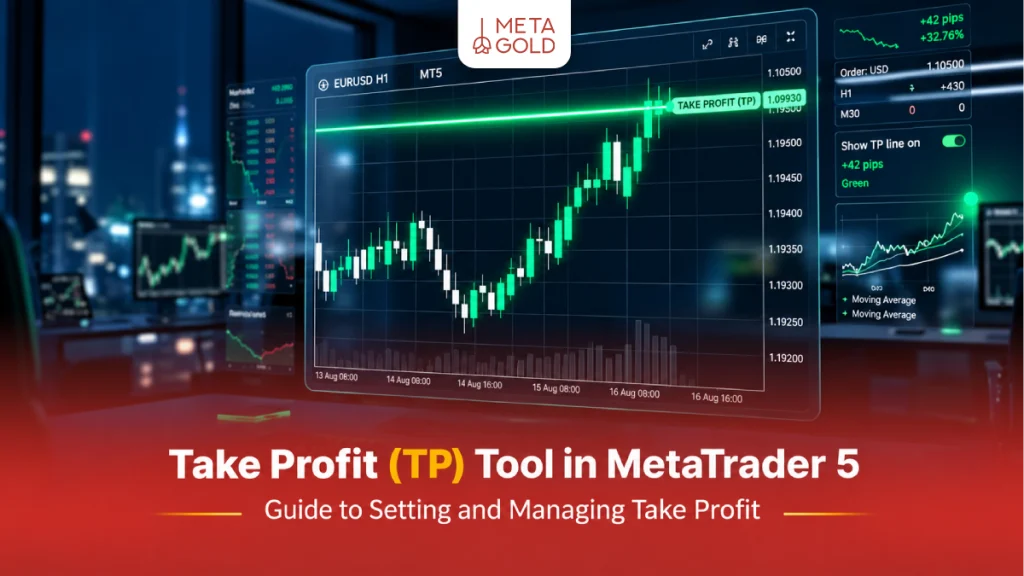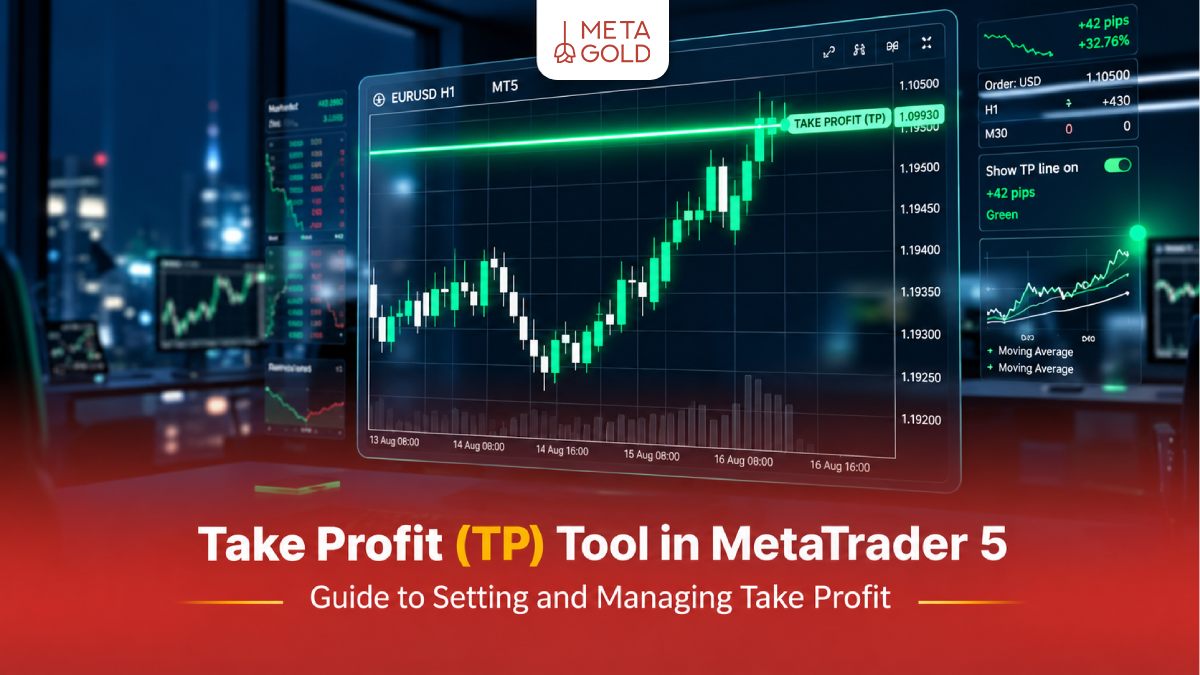
Step-by-Step Tutorial on Setting the TP Tool in MetaTrader 5
Properly setting the TP tool in MetaTrader 5 helps traders accurately determine the profit limit of their trades and lock in their desired profit without having to manually close the position. Before starting the steps, make sure you have installed the main version of the platform via the MetaTrader 5 download section to have full access to all trading tools, including setting the profit limit.
1. Set the Profit Limit Via the New Order Window
The most common way to enter the market and set price targets at the same time is to use the new order window.
- In the MetaTrader 5 application environment, press the F9 key on your keyboard. You can also right-click on the chart and select New Order from the Trading section.
- In the window that opens, first check the desired trading symbol.
- In the Volume section, enter the trade volume (lot size) based on your capital management (e.g. 0.1 or 1.0).
Now look at the Take Profit box. Here you need to type in your exact target price.
- If you intend to buy , the TP number must be above the current market price.
- If you intend to sell , the TP number should be lower than the current market price.
- At the same time, you can also fill in the Stop Loss box. Finally, click on Buy by Market or Sell by Market.

2. Edit Profit Limit on Open Trades (Modify Order)
Sometimes you enter the market in a hurry and forget to specify the target. To apply changes to active positions:
- Open the Toolbox window at the bottom of the screen (Ctrl+T).
- Click on the Trade tab to display the list of open trades.
- Right-click on the transaction you want to change and select Modify or Delete .
- In the new window, enter the desired number in the Take Profit field and click the large Modify button at the bottom of the window. This is exactly the same as editing trades in the TP tool in MetaTrader 4.

3. Moving the Profit Limit on The Chart (Drag and Drop)
One of the most attractive features of modern platforms is visual trade management. This feature is very similar to the functionality of the TP tool in TradingView , which allows you to move your target with just the mouse.
From the top menu, go to Tools > Options > Charts.
Make sure the Show trade levels and Enable drag and drop of trade levels options are checked.
When you enter a position, a green dashed line appears on the chart at your entry point.
Click on this line, hold the mouse button, and drag it up (for a buy) or down (for a sell).
Release the mouse at your desired level. A confirmation window will open; click “Modify” to successfully set your take-profit level on the chart.

The Concept of Take Profit and Stop Loss in Financial Markets
A Take Profit order, or TP for short, is an automated order that closes your trade with a profit as soon as the market price reaches a specified target. This feature allows the trade to be closed automatically when the price reaches a certain level, reducing the need for manual closing. If you want to learn more about this concept, read the article ” What is Take Profit? “
On the other hand, there is the Stop Loss tool, or SL for short. This order is designed to prevent heavy losses and closes the position with a controlled loss if the market moves against your analysis. To better understand this vital tool, we recommend that you read the article ” What is a Stop Loss ?” . The simultaneous use of these two factors forms the basis of professional risk management.
Why is It Nnecessary to Use the TP Tool in MetaTrader 5?
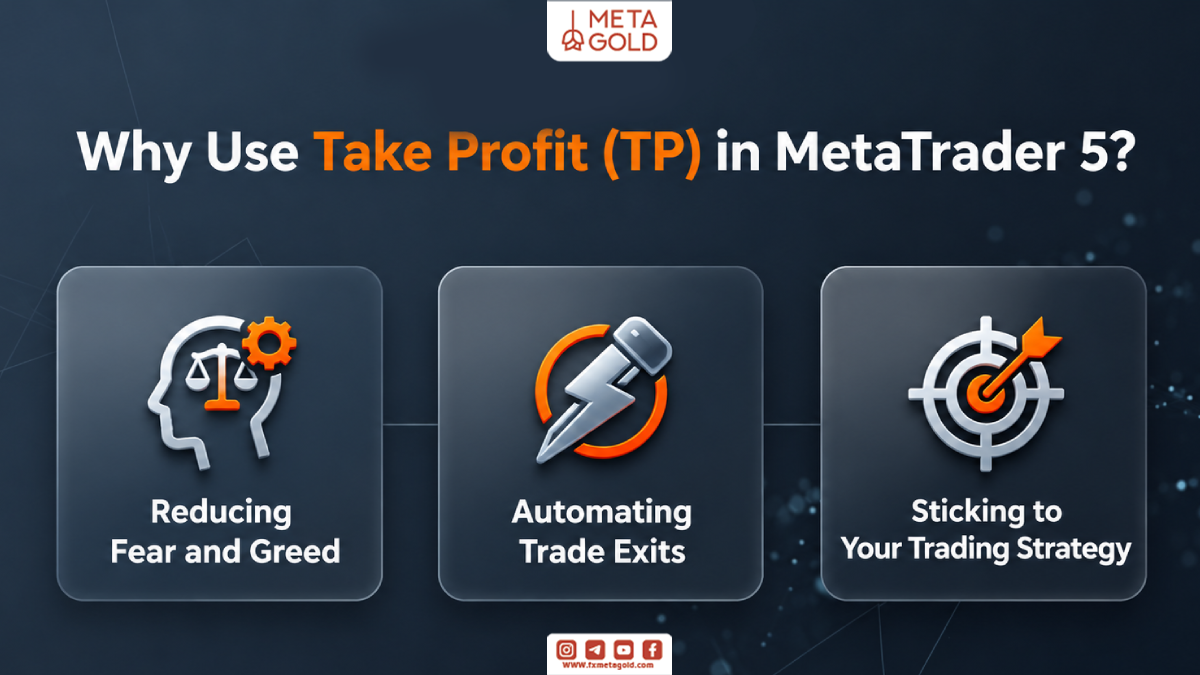
Many novice traders manage their trades manually. However, relying on the TP tool in MetaTrader 5 has many advantages that directly affect your account performance, including:
- Eliminate Emotions: The financial market is full of fear and greed. When the price reaches the target, greed makes you not close the trade to make more profit, but suddenly the trend reverses. Setting a target in advance prevents this mistake.
- Full automation: No need to stare at the monitor. You analyze, place the order, and the platform does the rest.
- Adherence to strategy: Having a specific profit limit allows you to proceed according to a detailed and calculated trading plan.
How to Find the Best Points for Take Profit Limits in MetaTrader 5?
Knowing how to use the software is only half the battle. The more important half is finding the right price to exit the market. Technical analysis gives us powerful tools for this, including:
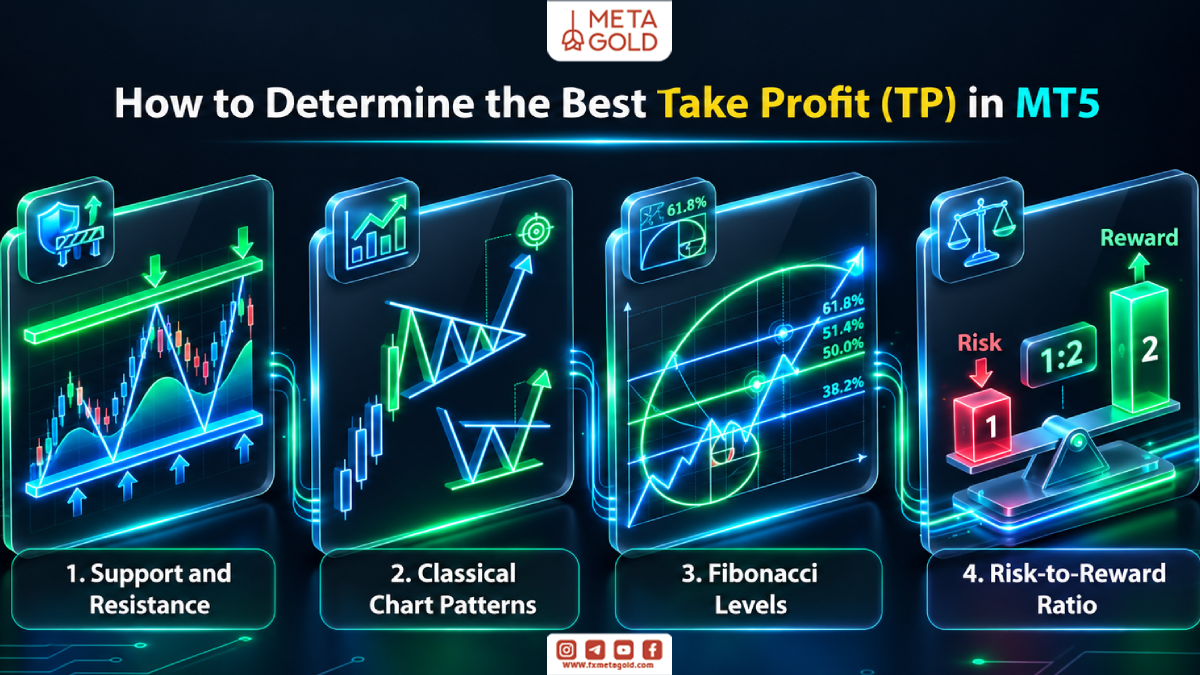
1. Support & Resistance
The most powerful tool for setting targets are key market levels. If you have a long position, the most logical place to place the TP tool in MetaTrader 5 is slightly below the next resistance level. The reason for this is that price usually reacts to resistance and bounces back. For short positions, place the target slightly above the next support level.
2. Using Classic Chart Patterns
Chart patterns such as head and shoulders, triangles, flags, and double tops have specific price targets. For example, in a head and shoulders pattern, after a neckline is broken, you can set your take profit limit to the distance between the head and the neckline.
3. Fibonacci Levels
The Fibonacci Retracement and Projection indicator shows you hidden support and resistance levels. The 161.8% or 261.8% Fibonacci Extension levels are very popular points for profit exits in strong trends.
4. Risk/Reward Analysis
Many traders look at risk-reward ratios to manage risk, with ratios like 1:2 being a common framework; however, the choice depends on the strategy and market conditions.
| Target-Setting Technique | How It Works and How to Determine the Exit Point |
|---|---|
| Classical Support and Resistance Levels | Exit before the price reaches significant previous highs or lows. |
| Chart Patterns | Measure the pattern's height and project it from the breakout point. |
| Fibonacci Levels | Set profit targets at key Fibonacci extension levels, such as 161.8%. |
| Risk-to-Reward Ratio | Multiply the distance between the entry price and Stop Loss by 2 or 3 to determine the profit target. |
Profit Management Techniques in MT5
Professionals don’t always use a fixed number for exits. The MetaTrader 5 platform has features that allow you to dynamically manage your positions. These include:
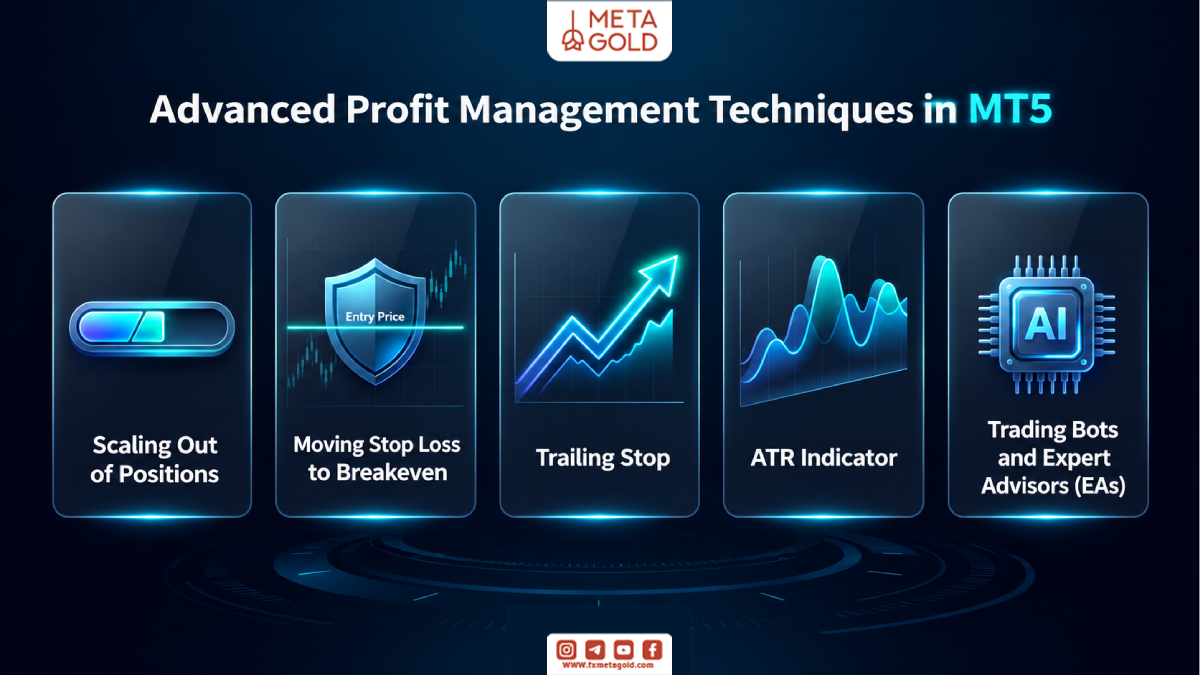
1. Partial Take Profit
Sometimes the market trend is so strong that it would be a shame to close the entire trade at the first target. In this situation, you can close half of the trade with profit and let the rest of it continue on its path.
To do this, double-click on your open position in the Trade tab. In the window that opens, change the Volume (for example, reduce it from 1.0 lots to 0.5 lots) and click the yellow Close button. Half of the profit will be saved, and the rest of the trade will remain open.
2. Risk-Free (Break-Even)
When the market moves in the direction of your analysis and you are slightly in profit, you can move the stop loss line and place it exactly at the entry point. With this protective technique, if the market suddenly reports negative news and the price reverses, your trade will be closed without any loss (with zero profit). This greatly reduces the stress of trading.
If you are not yet familiar with how to set a stop loss on the platform, you can read the guide on how to place a stop loss in MetaTrader to learn the steps to do this.
3. Trailing Stop
Trailing Stop is a tool that automatically draws a stop loss line as the price moves in the profit zone. To activate it, right-click on the position in the Trade tab, open the Trailing Stop menu, and specify a distance (in points). If the price goes up, the stop line will also go up, but if the price goes down, the line will remain fixed until the trade is closed with the maximum possible profit.
MetaTrader 5 explains Trailing Stop :
“Trailing Stop can be used to make Stop Loss follow the price automatically.”
4. Using the ATR Indicator
Market volatility is not always constant. During news events, volatility is more intense. The Average True Range (ATR) indicator shows the amount of candlestick volatility. If the ATR number is high, it means the market is making big moves, so you should place your take profit limits further away. If the market is quiet, choose smaller targets to get the deal done faster.
5. Tools and Robots (EA)
In addition to the default features, you can use Expert Advisors for automated management. Some Expert Advisors can automate the execution of trade management rules, such as setting TP and SL; however, their functionality should be tested before actual use.
Dangerous Mistakes When Setting Profit Limits With the TP Tool in MetaTrader 5
Even with a thorough understanding of the TP tool in MetaTrader 5, some mental errors can hurt your account. Avoid the following when setting your take profit limit:
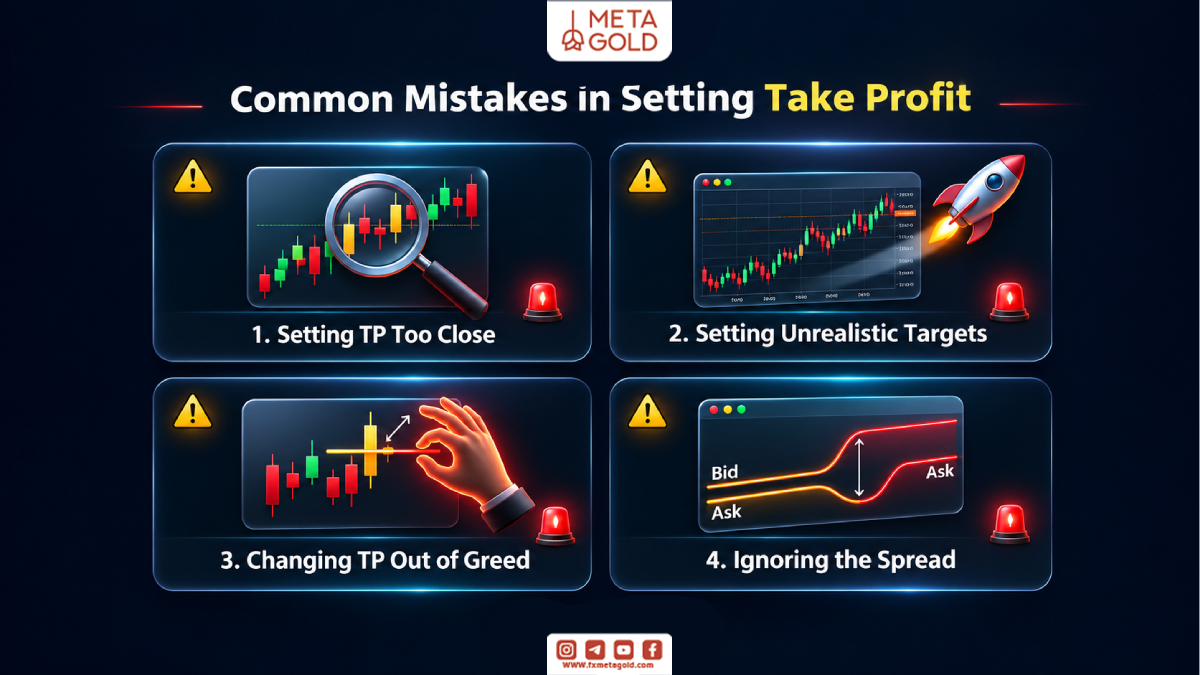
- Targets that are too close: If you set the target just 5 pips above the entry point, normal market fluctuations or even the spread (broker’s fee) will cause the trade to close too early and you will miss out on the profits of big trends.
- Dreamy and illogical targets: Setting targets at prices that have not been seen in the past year will only cause the trade to remain open for too long and the trend to reverse. Be logical and act according to the chart.
- Emotional manipulation during trading: The worst thing to do is to get greedy and keep moving the TP line higher when the price is approaching your take profit. Stick to your trading plan and let the system do its work.
- Ignore wide broker spreads: Always factor in the spread when setting your lines. For long trades, the ask price must reach the target.
The Importance of Journaling in Optimizing Exits
To find out if the targets you choose are appropriate, you should keep a record of your trades. Write down in an Excel file how many times the price hit your target exactly, how many times it bounced back before reaching the target, and how many times it went much higher after hitting the take profit limit. This statistics will help you to adjust the TP tool distance in MetaTrader 5 more optimally in future trades.
Conclusion: Mastering the TP Tool for Successful Trading in MetaTrader 5
Controlling risk and preserving capital is the key to staying in the financial markets. Learning how to use the tp tool in MetaTrader 5, setting the right volume in the New Order window, and using graphical methods on the chart are the first steps to becoming a professional. By combining this tool with technical concepts such as resistances, Fibonacci levels, principled risk-reward ratios, and multi-step exit techniques, you can insure your profits against sudden fluctuations. Always remember that greed for more profit is the number one enemy of your account balance. Set reasonable goals and let the software automatically transfer your profits to your wallet.